Infobreaker beta tester guide
Infobreaker is a local-first data broker removal app, now in public beta. It helps you enter your information once, scan supported broker sites, review possible matches, submit opt-outs where possible, and track whether removals stay removed. This is the long-form guide for testers and hands-on users; for the short overview, see the Infobreaker product page.
The important rule for this beta: if Infobreaker cannot prove something, it should not claim it.
That means the app may feel more cautious than cloud removal services. A submitted request is not counted as a removal. A failed broker check is not treated as "no listing found." A broker refusal is recorded as the broker's decision, not hidden as a generic app error.
Your profile, scan history, screenshots, and raw run logs are stored locally on your computer. Your information leaves your device only when you choose to send it to a broker as part of a removal request, or when you choose to send Tacita Labs a redacted support bundle.
Infobreaker makes network connections to broker sites you scan or submit requests to, and to tacitalabs.com for app and broker-automation update checks. Update checks send version/update metadata, not your profile.
Current Status
Current release: 1.0.0-beta.74
Public-beta downloads: macOS 1.0.0-beta.74, Windows 1.0.0-beta.74
The downloads below are the current public beta builds. macOS and Windows are aligned on beta.74.
Updating from beta.52 or earlier, or seeing beta.61 open without a window? Use these download links for this upgrade. The older updater cannot follow GitHub's release download redirect, and beta.61 can be blocked before the window appears by stale broker automation metadata. After installing 1.0.0-beta.74, in-app updates can download future releases normally.
Universal DMG for Intel and Apple Silicon.
Download Infobreaker 1.0.0-beta.74 for macOS
SHA-256: c568b36ad1cb844c28bc15ef3ee17746540920b4661aae6a84ba6a9ad6ed6e3b
Verify: shasum -a 256 Infobreaker-1.0.0-beta.74-universal.dmg
x64 portable ZIP with signed app payload.
Download Infobreaker 1.0.0-beta.74 for Windows
SHA-256: fbf648bac1c7f330aeb626f4c5f025db5510eb201b5efb9a7d39c40b5c1441ba
Verify: certutil -hashfile Infobreaker-1.0.0-beta.74-x64.exe SHA256
- Upgrade note: beta.52 and earlier can check the update feed but may fail to download with
HTTP 302because GitHub release assets redirect to the real file. beta.61 can also open without a window if stale broker automation metadata is already installed. If either happens, download the current beta from this page and replace the app manually once. - Automation bundle: beta.68 broker automation on the stable and beta channels. Broker automation updates separately from the app; Settings shows both versions. Automation beta.68 requires app beta.67 or newer.
- QA status: beta.74 is the current release. The Windows download is now a signed per-user installer with Start Menu and desktop shortcuts plus normal uninstall support. It passed clean install, launch, upgrade from beta.73 portable, preservation of all 7,333 existing data files and the local database, verification of all 13 installed payload signatures, and residue-free uninstall. The macOS universal DMG is signed, notarized, stapled, Gatekeeper-accepted, and passed packaged-app smoke plus release artifact audit. Both platforms were built from the same reviewed source commit.
- Privacy posture: local-first by default. Reports are optional and should be reviewed before sending. Raw debug folders can contain personal information; use the redacted support report first.
Version note
The guide describes beta.74 behavior. After a new build is promoted, repeat testers should re-read Current Status, Install Notes, and What changed lately.
Beta warning: Infobreaker is not finished. It can miss listings, flag weak matches, hit broker-side blocks, or require human action for opt-out forms. Do not assume a broker listing is gone until the monitoring workflow confirms it.
Best-effort support: This beta is not an emergency safety, legal, or guaranteed-removal service. Broker decisions and timelines are outside Tacita Labs' control, and support during beta is best-effort. We prioritize reports about disappearing work, unreconciled counts, unredacted support data, and claims without evidence.
Beta terms: Review the Infobreaker Beta Terms before sending reports. They explain the beta disclaimer, support boundary, and what not to send.
What to expect in week one
Most early beta confusion comes from timing. Infobreaker is not trying to make the dashboard green on day one. It is trying to build a paper trail that can be checked.
- Day 1: create a profile, scan brokers, and review possible matches.
- Days 1-3: submit removal requests where possible and complete any email confirmations, CAPTCHAs, or assisted browser steps.
- Around day 7: the first proof checks begin. Some brokers will still be inside their response window.
- Weeks 2-6: verified removals should start accumulating as brokers process requests and monitoring re-checks them.
Zero verified removals in the first week does not mean the app is doing nothing. It means Infobreaker is not counting submissions as removals.
Depending on your state, some brokers may refuse removal requests and claim your state's laws do not require them to act. Infobreaker records that refusal as evidence instead of pretending the request succeeded.
How to read the statuses
Verified removed means the app re-checked the broker and captured evidence that the listing is gone.
Removal requested means a request was submitted or confirmed, but the broker still needs time.
Still exposed means the listing was seen again. If the broker window is still open, this is monitoring, not a reason to hammer the broker with duplicate requests.
Needs you means a human step is required: CAPTCHA, email confirmation, assisted submit, or review.
Broker declined means the broker received the request and refused it. That is not the same as an app crash.
Overdue means the broker window appears to have passed and the listing is still visible. The next step should be a receipt-backed follow-up, not blind resubmission.
Reappeared means a listing came back after a confirmed removal.
Parked or not supported means Infobreaker is deliberately not attempting that broker right now. That may be because the broker flow is broken, deprecated, out of scope, or needs a safer workflow.
Every count in the app should reconcile to rows you can open. If a number does not click through to understandable evidence, report it.
Install Notes
- Download the universal DMG. It supports Intel and Apple Silicon Macs.
- Install Google Chrome before your first scan. Safari is not used for broker automation.
- Open the DMG and drag Infobreaker to Applications.
- If macOS warns that the app was downloaded from the internet, choose Open. The DMG is signed, notarized, and stapled.
- Allow expected macOS prompts that let Infobreaker open the app, access its own local files, or control the separate browser it starts for broker work.
- If you already tested an older beta, quit Infobreaker before replacing it.
- If the in-app updater reports
HTTP 302, or beta.61 opens without a visible window, quit Infobreaker and install from the DMG link above. Those are fixed after the one-time manual replacement.
To verify the download hash, run:
shasum -a 256 ~/Downloads/Infobreaker-1.0.0-beta.74-universal.dmg
- Download the x64 installer (
.exe). - Install Google Chrome before your first scan. Edge may work as a fallback, but Chrome is the tested path.
- Double-click the installer. It installs for your Windows account without requiring administrator access.
- Launch Infobreaker from the Start Menu or desktop shortcut.
- Windows may still show a SmartScreen reputation warning for a very new beta. Click More info to confirm the verified publisher is James O'Gorman before continuing.
- Verify the SHA-256 hash below before running the app if SmartScreen makes you nervous.
- Quit any older portable Infobreaker copy before running the installer.
- Your profile and history live outside the app folder and are preserved when upgrading from the portable beta.
- Uninstall Infobreaker from Settings > Apps > Installed apps when needed. Uninstalling the app does not delete your profile or history.
To verify the download hash, run:
certutil -hashfile .\Infobreaker-1.0.0-beta.74-x64.exe SHA256
Browser Automation
Infobreaker sometimes opens a normal desktop browser while scanning brokers or submitting opt-out requests. This is deliberate. Many broker sites treat invisible automation, datacenter-style browsers, or heavily instrumented test browsers as suspicious. A regular local browser behaves more like a normal person using the site from their own computer, which gives the app a better chance of reaching the same pages you would see manually.
- On macOS, Infobreaker looks for Google Chrome first, then Chrome Canary or Chromium.
- On Windows, it looks for Google Chrome or Chromium first, with Microsoft Edge as a fallback. Chrome is the best-tested path on both platforms.
- The browser may be visible. If a broker shows a CAPTCHA, security check, email confirmation, or other human step, complete it in that window and the app will continue when the broker accepts it.
- Visible browser windows are not a failure. They are how the app lets you watch what is being sent and step in when brokers deliberately require a person.
- Infobreaker launches the browser with its own automation profile, separate from your normal personal browsing profile.
- That keeps broker visits, cookies, sessions, and history from being mixed into your everyday browser profile.
- The automation profile lives in Infobreaker's local app data and stays on your device.
- If the browser is already open in your normal profile, Infobreaker still uses its own separate automation profile for broker work.
The tradeoff is intentional: using a real browser makes broker automation more reliable, but the app still keeps the profile local and separate so testing Infobreaker does not turn your everyday browser history into a pile of broker-site visits.
Email and broker replies
Brokers usually require an email address before they process a removal request. Expect confirmation emails, receipt emails, and sometimes refusals. Some of them look like marketing or spam.
- Use a personal email address you control. Some brokers appear to treat business domains, iCloud Hide My Email, Firefox Relay, or other relay/workflow-looking addresses as third-party requests. A dedicated mailbox is fine, but it should look like a person, not a service.
- Check spam if a confirmation email does not arrive.
- If the app shows a waiting-email row for more than a day, use the email-never-arrived path instead of rerunning the same removal immediately.
- If a broker sends a refusal or says the request was classified as a third-party or authorized-agent request, save that email. That response is evidence.
Short Tester Guide
The highest-value feedback is not just "did it crash?" It is whether the app makes a hard privacy workflow understandable enough that a normal person can finish it.
- Is it obvious what to do next?
- Do the tabs feel like a natural workflow: Today, Profiles, Scan, Review, Remove, Monitoring?
- Does the app explain results without sounding technical or evasive?
- Are warnings, blockers, and next steps clear when something cannot be automated?
- Does the app make it clear when it knows something versus when it is still waiting?
- Did Infobreaker find listings you expected it to find?
- Did it miss a real listing you found manually?
- Did it flag someone else as you?
- Did a broker produce errors, blocks, CAPTCHAs, or confusing results?
- Was it clear which listings were ready to remove?
- Did preview and live removal steps make sense?
- Did broker forms open and submit correctly?
- Were required human steps, like CAPTCHA or email confirmation, clearly explained?
- If the app prepared a form but asked you to submit it, was it clear that nothing had been sent yet?
- Do you understand how to verify removals?
- Can you tell what is waiting, due, blocked, removed, or reappeared?
- Does recurrence tracking make sense?
- Would you trust the timeline enough to come back later?
- Do verified-removal counts, in-flight rows, and overdue rows match evidence you can open?
What changed lately
Recent beta hardening focused on one theme: do not let the app overclaim.
- Beta.72 ties each removal attempt to the exact profile and scan, suppresses stale failures after a final outcome, deduplicates Whitepages URL variants, and keeps completed work out of Ready and batch lanes.
- Requeued monitoring work now opens the correct removal row, and emailed final-form workflows distinguish interim receipts from final acceptance or denial.
- Beta.67 rewrote the main workflows in shorter, plain language and hid raw internal errors behind optional technical details.
- The legal-request, registry, indirect-exposure, and email-draft workflows now share clearer controls and typed failure handling.
- A passive broker security check is no longer mislabeled as a CAPTCHA that needs you, and a recoverable tab failure can reuse the warm browser session instead of starting over cold.
- Broker automation beta.68 adds the latest workflow and broker guidance behind the signed update channel, with replay checks required before publication.
- A second Infobreaker launch now waits briefly for the local database instead of crashing immediately when the first instance is still writing.
- The status model is now stricter about proof. Verified removals are counted only after a broker re-check confirms the listing is gone.
- Monitoring now distinguishes broker-window waiting from overdue rows. A listing that is still visible before the broker's response window closes is monitored instead of blindly retried. A listing still visible after the window closes is treated as overdue and should use receipt-backed follow-up.
- Verification evidence is more precise. Broker re-checks now keep the exact matched result when a parser can identify one, and some brokers now save row-level evidence instead of only full-page screenshots.
- SmartBackgroundChecks verification now treats person-specific profile URLs as record boundaries, so a different live record does not poison a removal that already succeeded.
- Assisted/manual removal handoffs are durable across restarts and can capture evidence when the tester records the outcome.
- Settings now includes local data information, automation identity, database compatibility, Chrome readiness, and Copy Support Info.
- Windows builds now enforce a single running app instance to avoid two beta folders fighting over the same local database and browser session.
- Waiting-email rows now surface an email-never-arrived path after the request has aged.
- Public-source safety checks now have a redacted mode so failure logs do not print the sensitive text they were meant to catch.
- Earlier beta work added the first-run tutorial, assisted-browser privacy notice, app and broker automation update checks, redacted support reports, debug run logs, clearer broker error summaries, packaged Windows runtime support, and universal macOS builds.
Suggested Test Pass
- Install Infobreaker and create one profile.
- Add at least one current or previous city/state where broker records may exist.
- Run a scan.
- Review possible matches carefully. Mark wrong people as not a match.
- Try at least one opt-out preview before live submission.
- Complete any required email confirmation, CAPTCHA, or assisted browser step.
- If an opt-out succeeds, follow the Monitoring tab until the app tells you what to check next.
- Open evidence behind at least one status and confirm the claim matches the screenshot or receipt.
- Check Settings and use Copy Support Info so you know what a report includes.
- Turn on support run logs before trying a flow that previously failed.
- Send feedback for confusing UI, false positives, false negatives, opt-out failures, evidence problems, and monitoring confusion.
Keep the computer awake while scans and removals are running. A default broker pass can take several minutes, and longer runs may stretch when brokers are slow, blocked, or asking for human steps. Chrome needs to be allowed to open windows during the run.
What to report
Do report:
- a number that does not reconcile to visible rows
- work that disappears after you took an action
- a claim that does not have evidence behind it
- a wrong-person match
- a real listing the scanner missed
- a broker refusal, especially a third-party or authorized-agent classification
- a support report that appears to contain unredacted personal details
You do not need to report every CAPTCHA, slow broker, or state-law refusal unless the app handles it confusingly. Those are expected broker conditions. The bug is when Infobreaker explains them poorly or claims more than it can prove.
Debug Logging
Infobreaker can save scan and removal run logs locally to help troubleshoot beta failures. These logs are for support, not telemetry. They stay on your device unless you choose to send them.
For the Infobreaker privacy model, see the Infobreaker Privacy Notes.
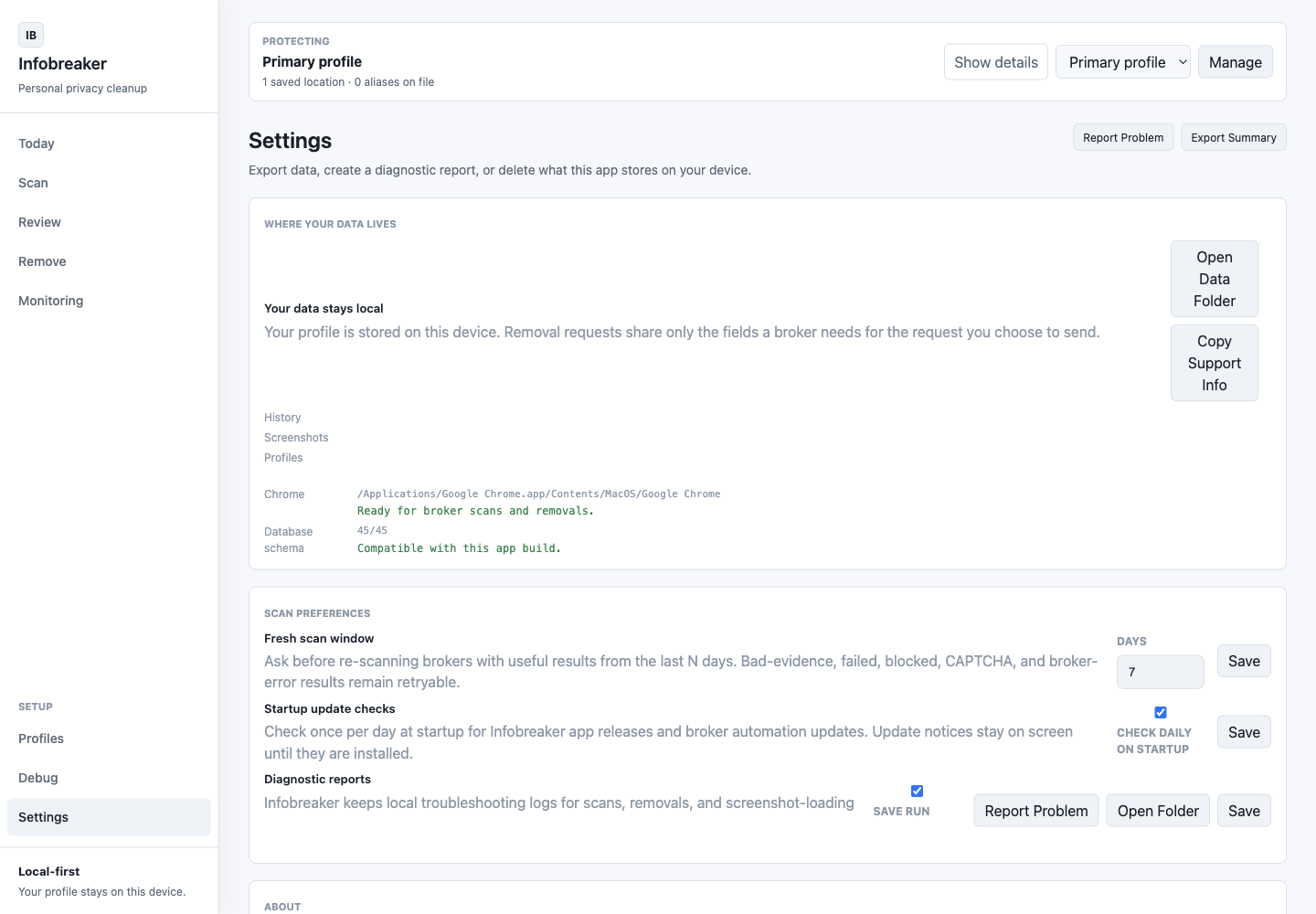
How to turn logging on
- Open Settings.
- In Scan Preferences, enable Save run logs.
- Click Save.
- Re-run the scan or opt-out flow that failed.
- Use Copy Support Info when you only need to share app, platform, Chrome, database, and automation-version details.
- Use Report Problem to create a redacted report, or Open Folder to inspect the raw local logs.
What gets cleaned before reporting
When you create a support report, Infobreaker creates a separate redacted copy for review. The report is designed to remove or mask profile details such as names, email addresses, phone numbers, street addresses, ZIP codes, and other obvious personal values before you send it.
You should still review the report before sending. Beta software is exactly where paranoia earns its keep.
Reporting Issues
Send beta reports to infobreaker@tacitalabs.com.
You'll get a human reply from Tacita Labs. During beta, response time may vary. We aim to acknowledge high-priority beta reports within two business days, but this is best-effort support, not an SLA. Reports about disappearing work, unreconciled counts, unredacted support data, or claims without evidence are the highest priority.
For scanner, opt-out, or monitoring issues, include:
Subject: Infobreaker beta issue - [short summary]

Platform: macOS or Windows
Infobreaker version:
OS version:
Chrome detected? yes/no/not sure
Automation version, if shown:
Broker or screen:
What you were trying to do:
What happened:
What you expected:
Did you use Copy Support Info or enable support run logs? yes/no
Attachments: screenshot, redacted support report, or screen recording
High-value screenshots show the full app window and the current tab. For privacy, crop or blur anything you do not want to share.
Do not send raw debug folders unless Tacita Labs asks for them. Use Report Problem first because it creates the redacted support copy.
Beta terms and support boundaries are posted at Infobreaker Beta Terms.
App Overview
Infobreaker is organized as a workflow, not as separate utilities. Start at Today, keep your profile current, scan brokers, review matches, remove confirmed listings, then monitor removals over time.
Today
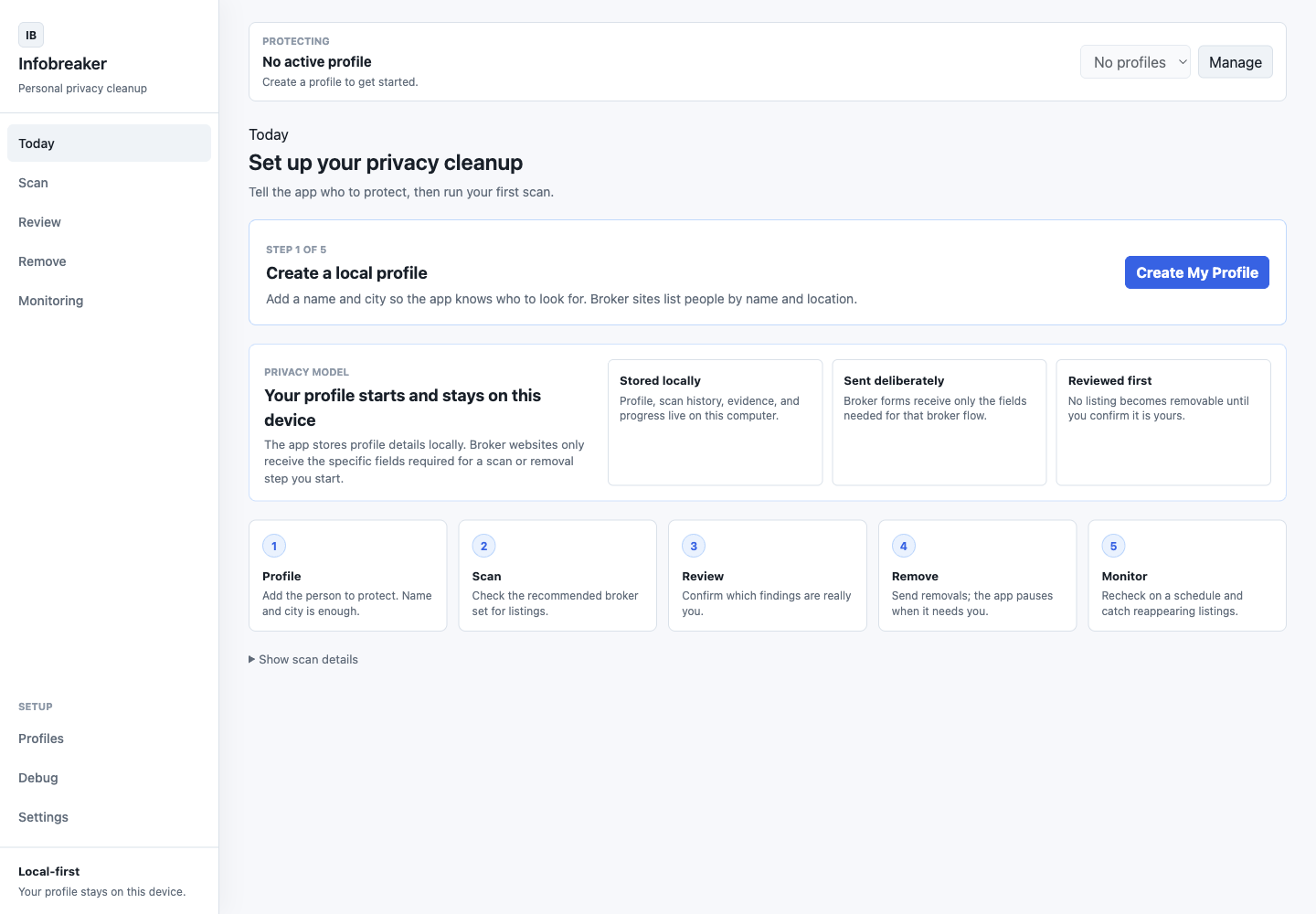
Today is the command center. It shows what needs your attention, what is ready to do next, and what changed recently.
Use Today when you are not sure where to go. After a scan, it should point you toward Review. After confirmed matches, it should point you toward Remove. After submitted removals, it should point you toward Monitoring.
Things to test:
- Are the action cards clear?
- Does Today explain the current state without making you hunt through tabs?
- After each workflow step, does Today update in a way that feels obvious?
Profiles
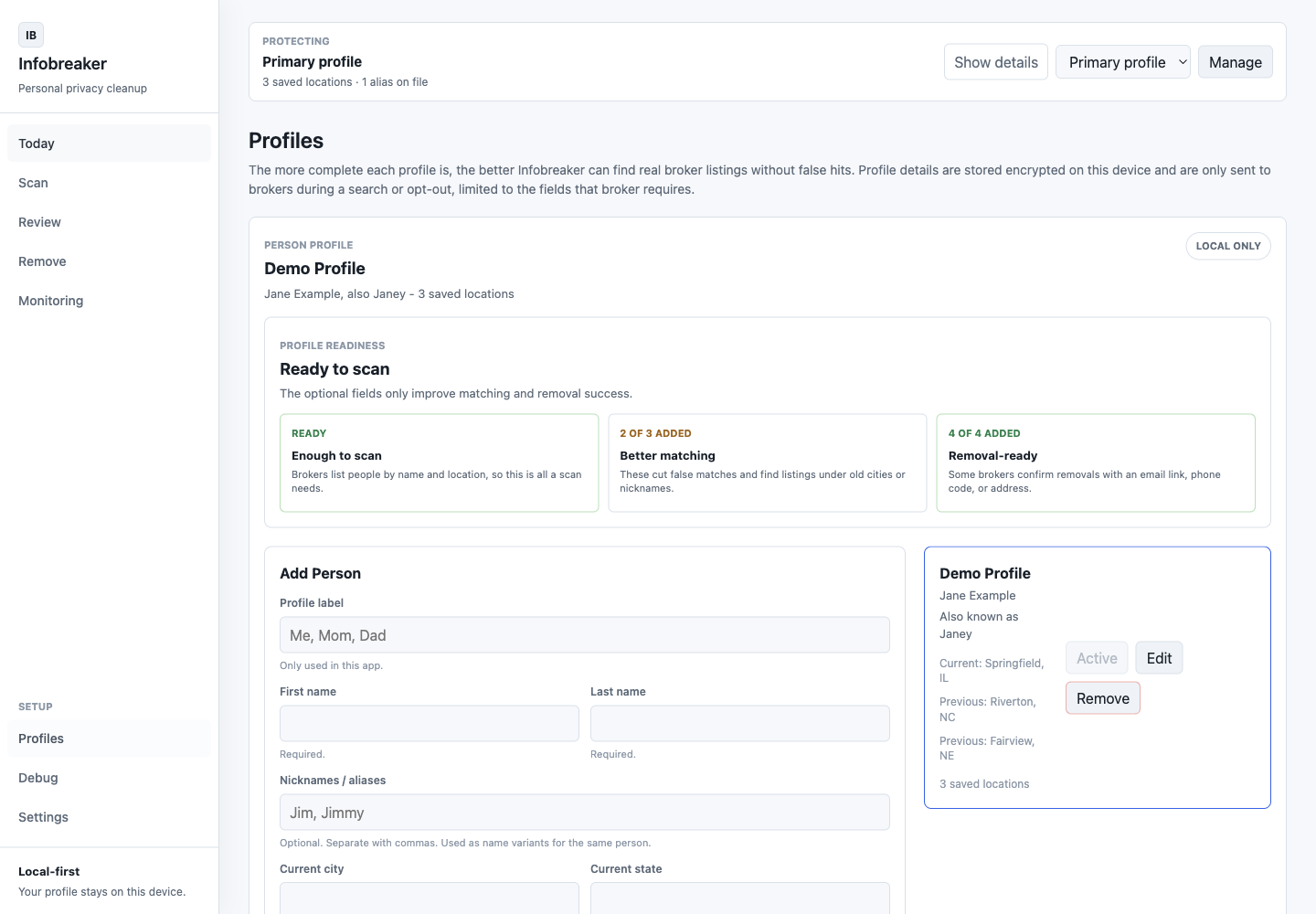
Profiles are where Infobreaker stores the person and locations you want to scan for. Profile details stay on your device. The saved profile file is encrypted with operating system secure storage when available. Scan history, monitoring data, evidence screenshots, and raw debug logs are local files and should be protected by your computer's disk encryption, such as FileVault on macOS or BitLocker on Windows. Settings shows the local data path and current storage/encryption state.
Use Profiles to add your name, aliases, current city/state, and previous locations that may still appear in broker records.
Things to test:
- Is it clear what information is needed and why?
- Are aliases and previous locations understandable?
- Does profile setup feel safe enough for a privacy app?
Scan
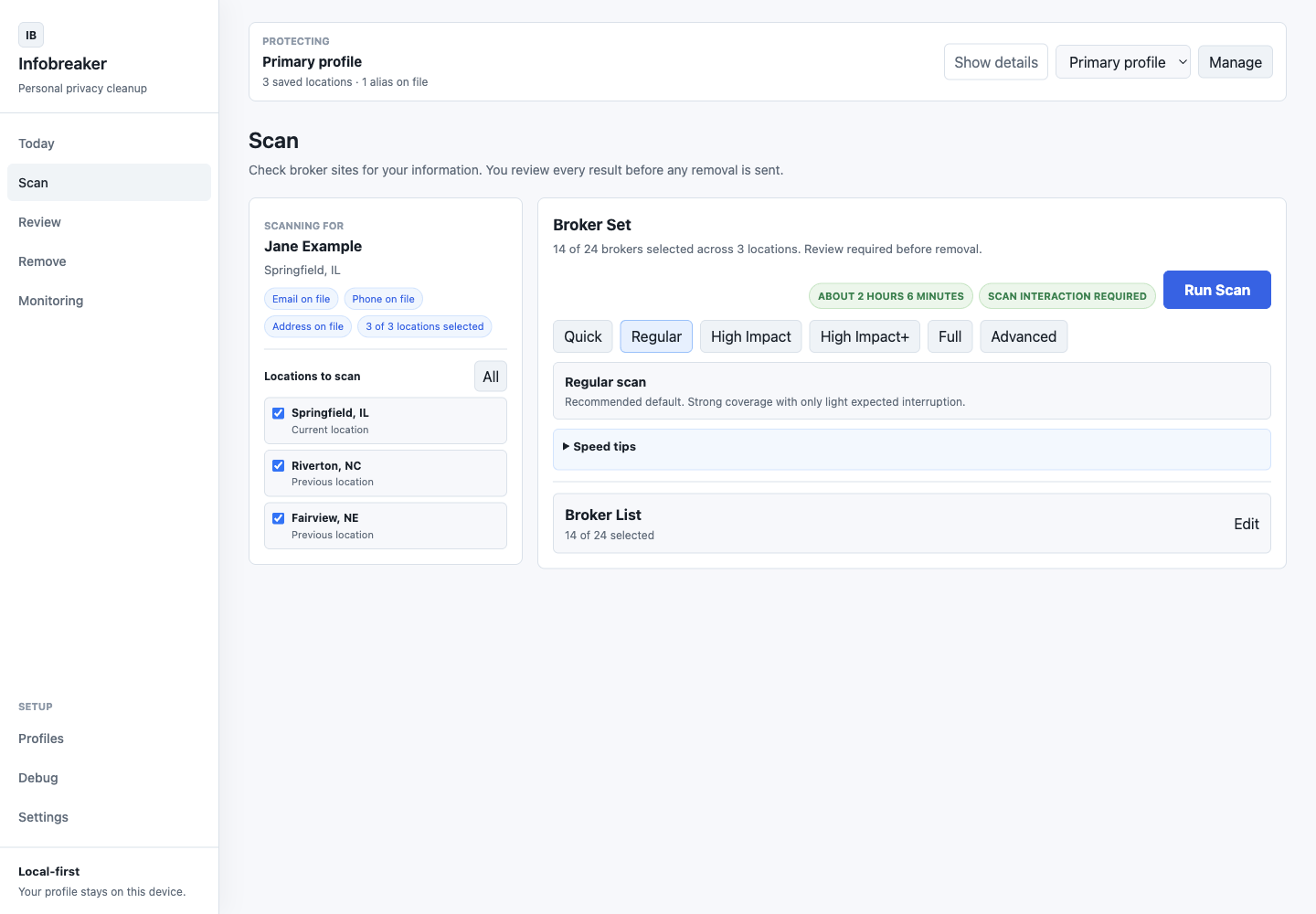
Scan checks supported data broker sites for possible records. The app uses your profile locations and selected broker set to decide what to search.
Use Scan to start a first pass, retry brokers with issues, or run a narrower follow-up.
Things to test:
- Did the scan start with clear expectations?
- Did it explain skipped, cached, blocked, failed, or uncertain checks?
- Did it find real listings?
- Did it miss listings you found manually?
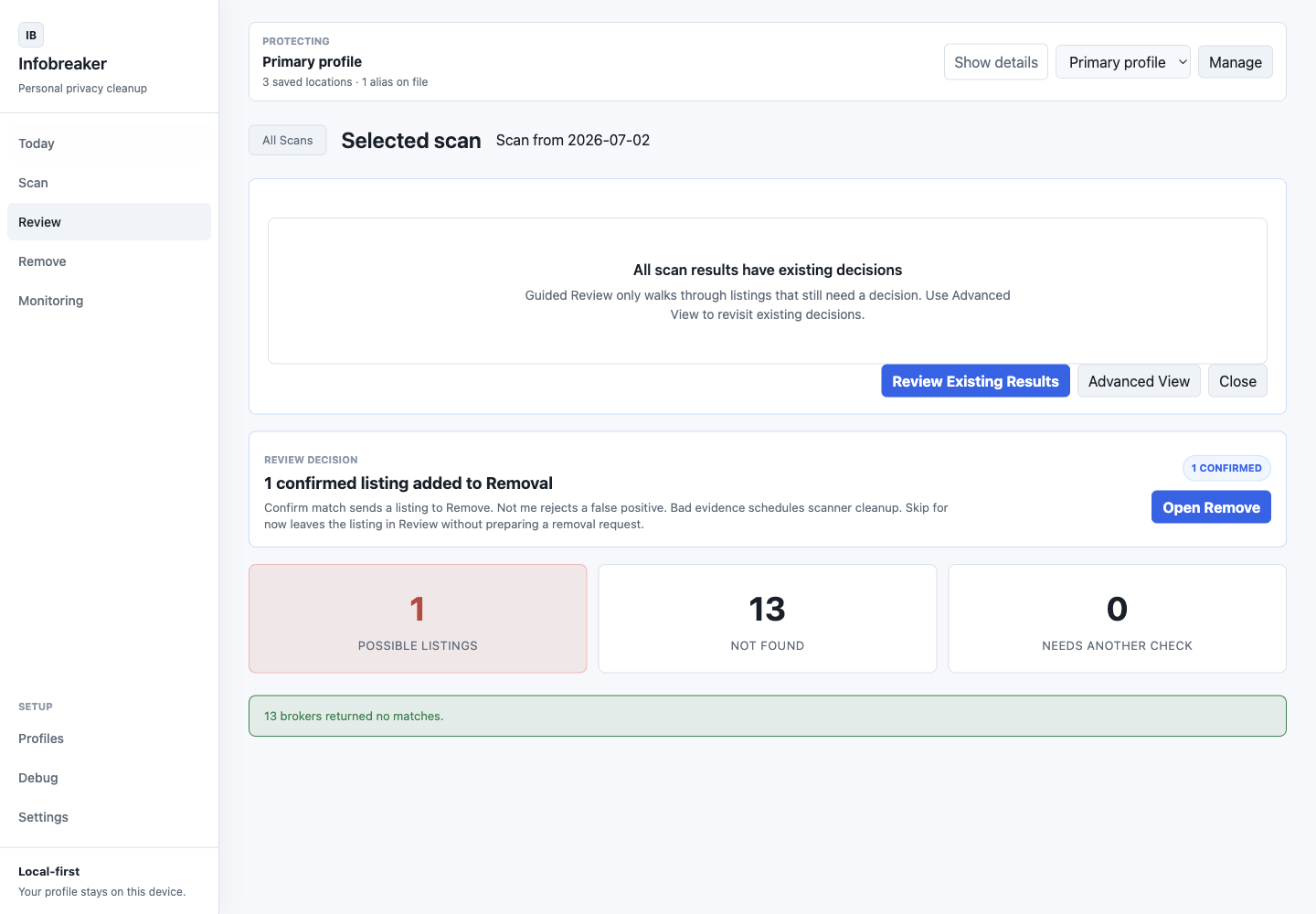
Review
Review is where possible matches become decisions. Infobreaker may find people with similar names or locations, so tester judgment matters.
Use Review to confirm real matches, reject false positives, inspect evidence, and send confirmed listings to removal.
Things to test:
- Is there enough evidence to make a decision?
- Are false positives easy to reject?
- Is the difference between possible match, confirmed match, bad evidence, and not a match clear?
- Does the next step after confirmation make sense?
Remove
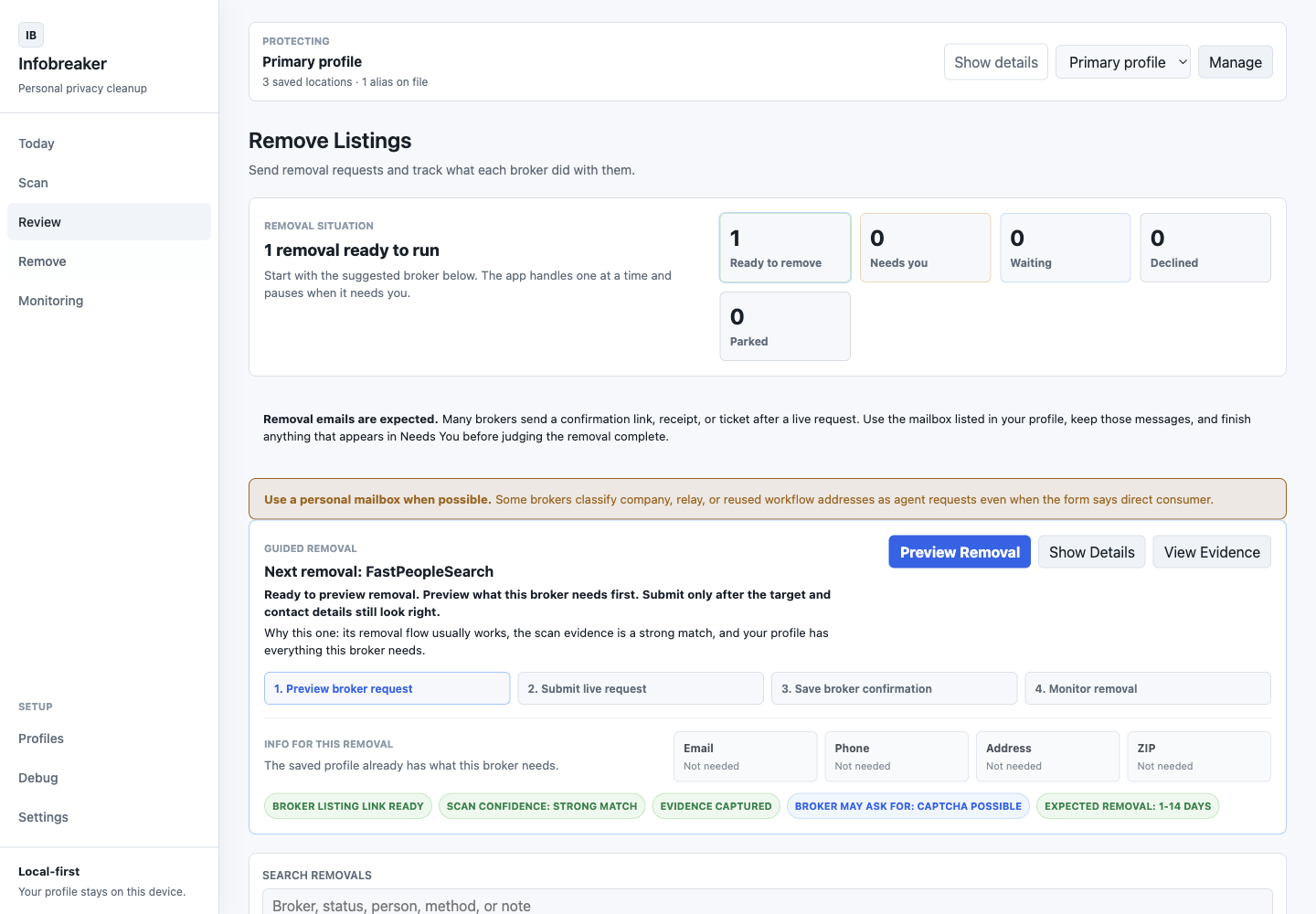
Remove guides opt-outs for confirmed listings. Some brokers can be handled mostly inside the app. Others require a browser, CAPTCHA, email confirmation, or another human step.
Use Remove to preview what the app will submit, start live removal, handle required broker prompts, and move submitted records into Monitoring. If Infobreaker prepares a form and pauses for you to review or submit it, treat that as prepared, not submitted, until the app records the result.
Things to test:
- Is preview versus live submission clear?
- Do broker handoffs open correctly?
- If automation stops, does the app explain why?
- Is it obvious when a removal has been submitted versus merely prepared?
Monitoring
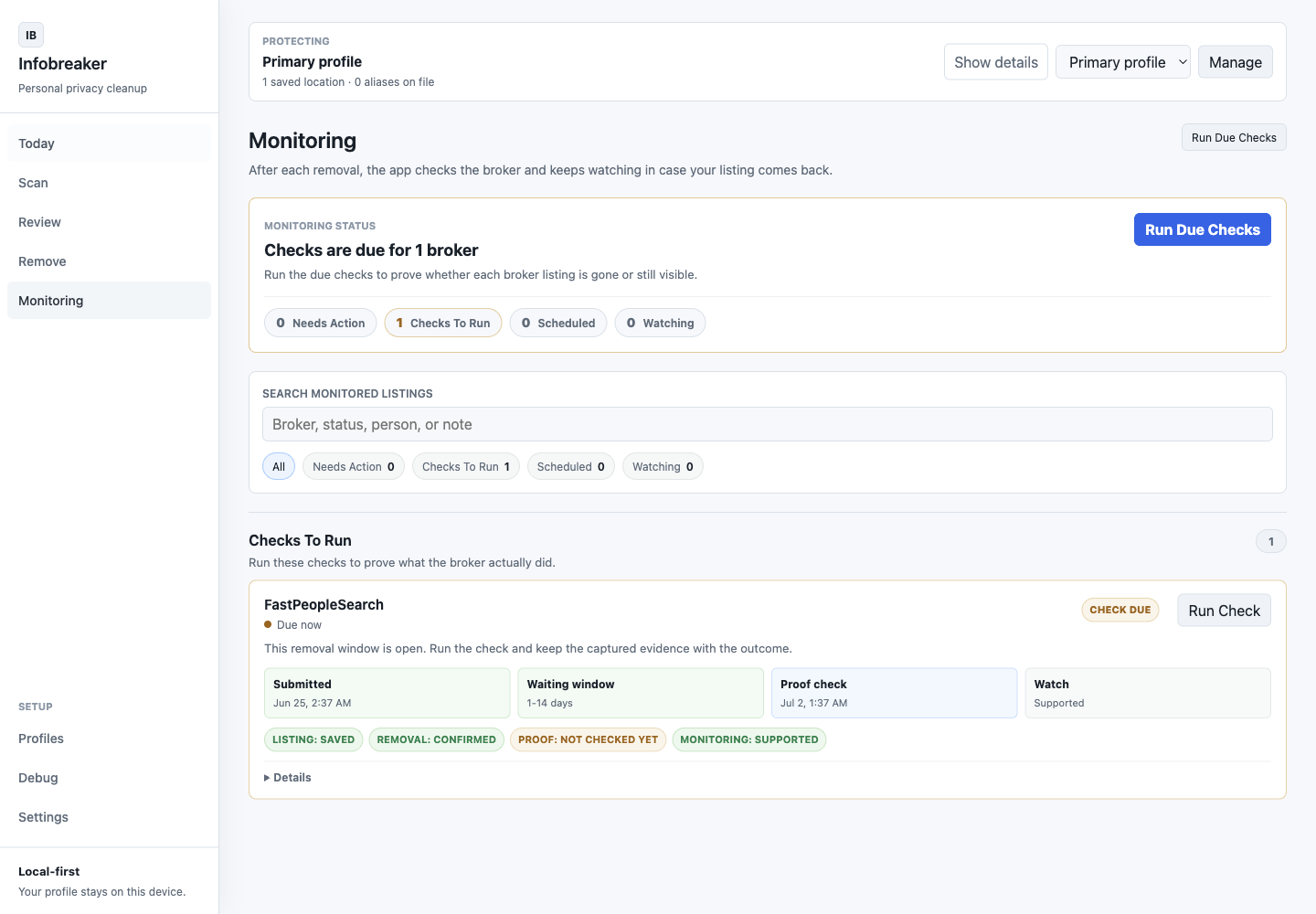
Monitoring tracks what happens after opt-out submission. Broker removals are not instant, and listings can reappear. This tab should make that waiting period understandable.
Use Monitoring to see removals that are waiting, due for checks, verified as removed, still listed inside a broker window, overdue, declined, or reappeared.
Things to test:
- Do removal statuses make sense?
- Is it clear when to run due checks?
- Can you understand proof, evidence, monitoring, overdue, retry, and recurrence states?
- Would you know what to do if a listing comes back?
Settings
Settings shows where local data lives, scan preferences, debug logging controls, support reporting, Chrome readiness, app/database compatibility, and update channels.
Use Settings to enable run logs, copy support info, create a report, open the local data folder, export a local summary, and check for app or automation updates.
Things to test:
- Is it clear that data stays local?
- Is debug logging understandable without sounding scary?
- Does Copy Support Info include useful version details without exposing profile data?
- Does Report Problem create something you can review before sending?
- Are app and automation update states clear?
Known Gaps
Infobreaker is still a beta, and these are the known rough edges testers should expect:
- Windows uses a signed per-user installer. A signed portable ZIP remains available in the GitHub release as a fallback, but the installer is the supported default.
- Some brokers block automation, show CAPTCHAs, delay removals, or require email confirmation.
- The app can find weak or wrong matches. Review decisions matter.
- Removal verification is not instant. Monitoring may need later rechecks before a listing can be called removed.
- Search surfaces can be messy. Paywall teasers, censored rows, and multiple records for the same person may require extra evidence before a listing is treated as escalation-ready.
Use the downloads at the top of this page. When a new build is promoted, the links and hashes there are updated to match.